-
-
-
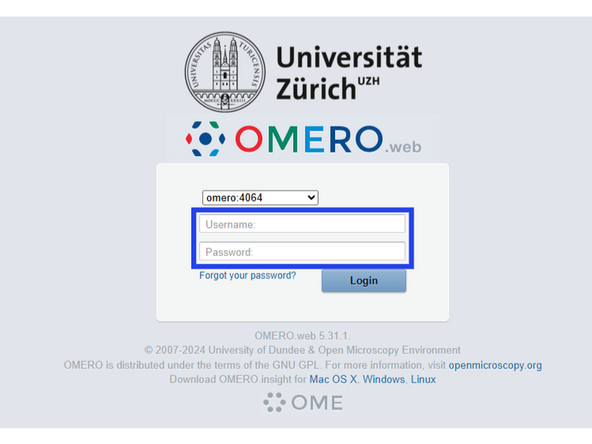
Enter your UZH CORE account credentials to login via LDAP.
-
The first login can take several seconds. If any error appears in red text, or if the webpage is not accessible, please wait for at least 30 minutes in case an update is being pushed, and then contact the OMERO responsible(s).
-
OMERO is accessible strictly within the limits of the UZH internal network for security reasons.
-
-
-
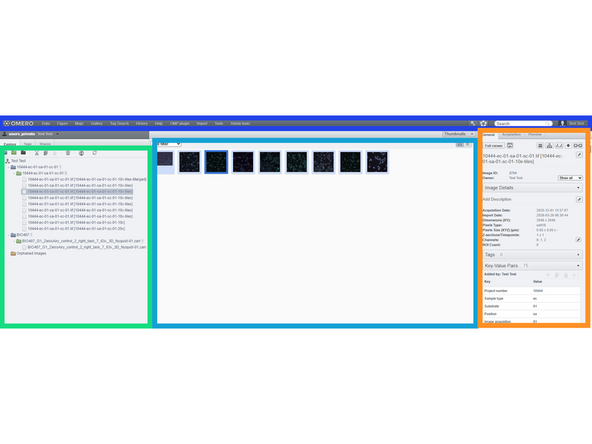
The main OMERO.web window consists of 4 elements:
-
1. Top navigation bar: Navigate between different windows, including Data, and OMERO Figure, which is the highlight of OMERO.web and enables the creation of publication-grade Figures. There are also several custom plugins towards the right-hand side of the bar, which will be discussed in a separate section.
-
2. Project explorer (Data): All data is stored in Projects and Datasets. Users can create/select/delete their data, collaborate with other users, create Tags, and duplicate data without a storage penalty.
-
OMERO does NOT allow nested structures. Each project can only have one sublevel (Datasets). OMERO is NOT meant to be a direct replacement of existing folder-based microscopy data storage, but rather guide users into better data labeling and managemend practices.
-
3. File preview: Visual representation (thumbnails) of microscopy data.
-
In case of special file formats such as OME-ZARR, thumbnail generation can take a long time if "pyramids" were not already included in the file structure before import. It is almost mandatory that the users upload complete pyramidal-style data to prevent excessive server load and inability to preview or view the data.
-
4. Details panel: A panel with the full image details, acquisition metadata, as well as user-created Tags, Key-Value Pairs, file attachments, and a variety of other fields that are meant to properly classify microscopy data. On the top-right, users can download and share the selected objects.
-
-
-
To import files and folders into OMERO, the only officially supported method is OMERO.insight, which is a separate software. For ZMB staff, it has been installed in the following VMs: ZMB Staff A & B, ZMBeast. For all other collaborators and users, it can be downloaded and installed from https://www.openmicroscopy.org/omero/dow....
-
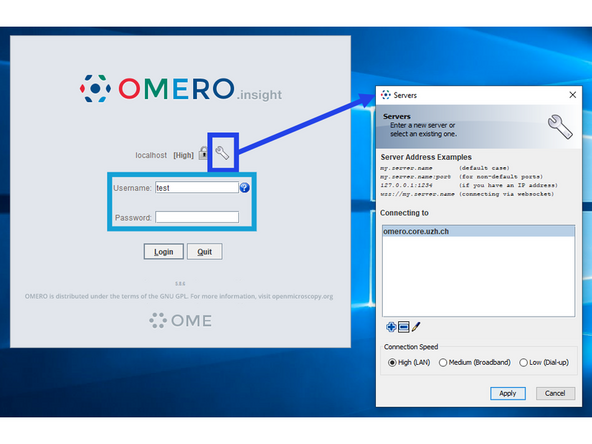
Start OMERO.insight and click on the tool icon. Remove the default localhost server address and add the following: omero.core.uzh.ch. Then click Apply. Preferably, also enable secure connection ("closed" lock) for enhanced security.
-
Type your UZH CORE account credentials to login to your OMERO account.
-
Due to filesystem initialization and other server-internal routines, it can take several hours from the moment of your first OMERO login to being granted storage access. Please be patient.
-
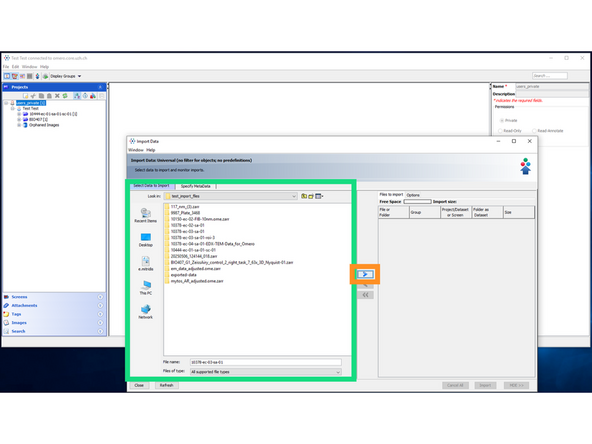
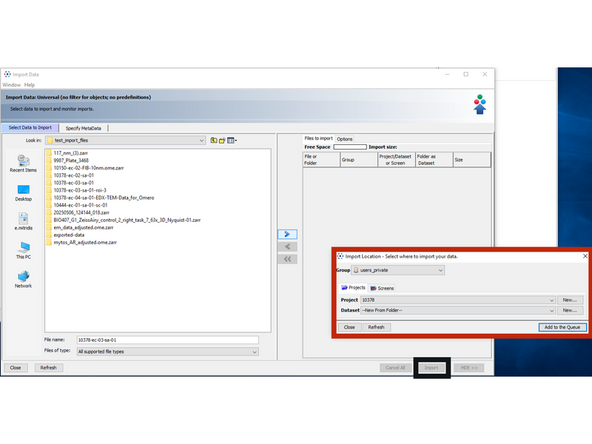
Click on File -> Import. In the Import Data window, select one or more folders to be imported and then click on the > symbol.
-
Then select the Project and Dataset names where the selected data should be imported into, or create new ones be clicking on New.
-
Finally, click on Import button on the bottom right of the main window.
-
It is very important that you do not interrupt the import process until it is complete (all progress bars full and green tick marks). This can take a very long time in the case of large datasets, or datasets with multiple files or nested file structure.
-
-
-
This is an alternative, ZMB-exclusive, data import method which offers several advantages, such as stronger support for data with heavily nested folder structures (e.g. OME-Zarr), user-friendly file selection and drag&drop capabilities, and special import routines which can be expanded in the future.
-
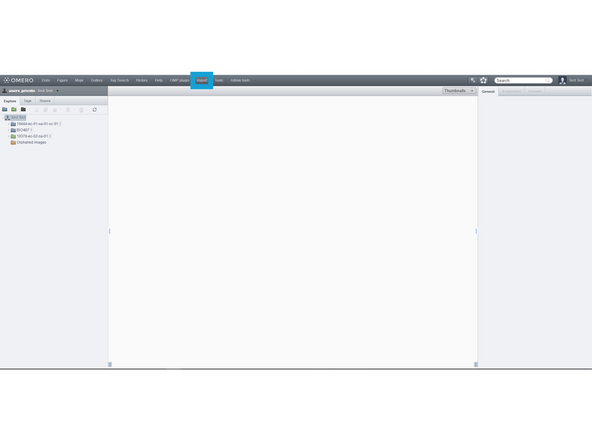
In the OMERO.web interface, top navigation bar, click on Import.
-
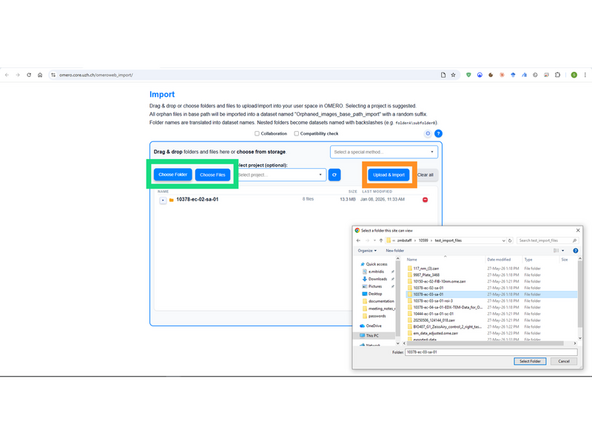
Then click on either Choose Folder or Choose Files, which will open a file explorer window for data selection, or just drag and drop one or multiple folders into the designated space. Optionally, you can select one of the existing OMERO projects for the data to be imported into.
-
Click on Upload & Import and wait until the upload phase is complete. You can then close the window, as the import will continue server-side.
-
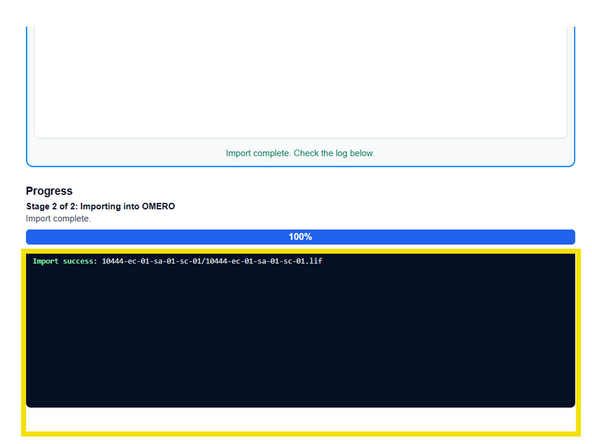
You can always check the bottom of the page for the import log, which can be retrieved later and shows the status (success or failure) of the last import.
-
-
-
OMERO does not support nested folder structures. All nested structures are flattened into Datasets at import time. It is of utmost importance that users annotate their data properly, ideally following the REMBI guidelines.
-
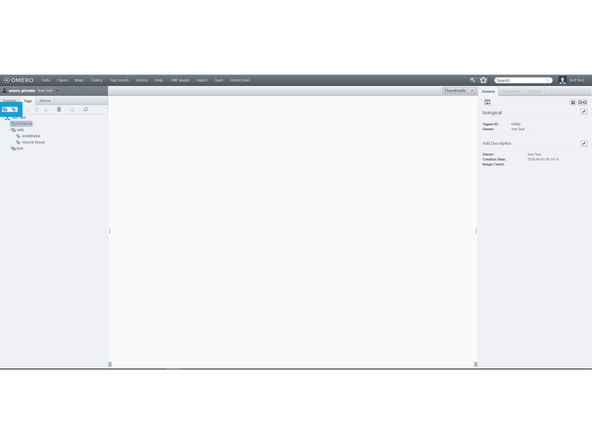
Tags: they are keywords that are used to classify data into categories and subcategories. To create them, in the main OMERO.web interface, click on Tags tab on the top left. You can then add one or multiple Tags with optional descriptions, which will be linked to your user account.
-
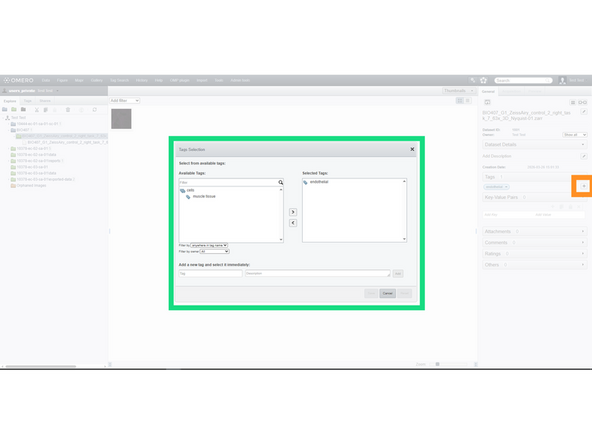
You can add Tags into a specific Project, Dataset, or image. For this, select the appropriate entry from the Project Explorer (left), go to the right-hand side panel, expand the Tags tab and click on the + icon.
-
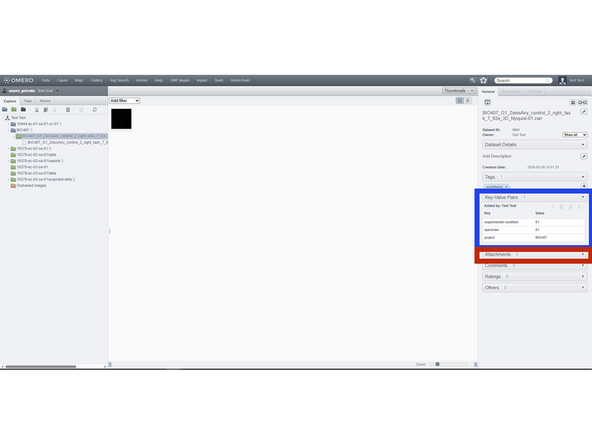
Key-value Pairs: they are constants that define experimental conditions, sample properties, and generally all project-specific information. To add Key-Value Pairs, expand the relevant entry in the right-hand side panel and type a Key and associated Value.
-
Attachments: users can append any type of file(s) to their data, such as text files with experimental conditions, csv files, screenshots of the samples, and additional metadata files. These can be uploaded via the Attachments tab in the right-hand side panel.
-
-
-
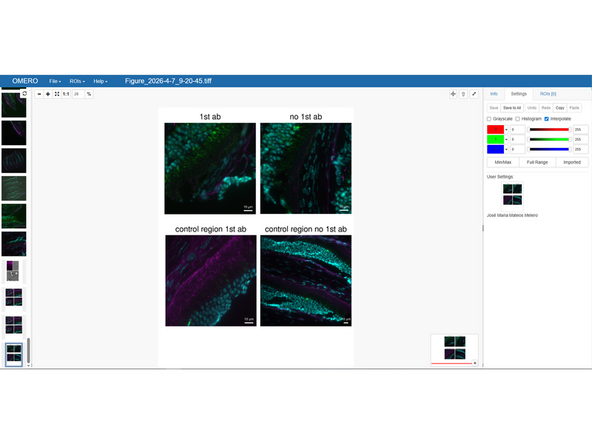
One of the main selling points of OMERO is OMERO.Figure, which gives the possibility to create publication-quality Figures natively from OMERO.web,with multiple linked images, text and markers, and export them into your preferred format.
-
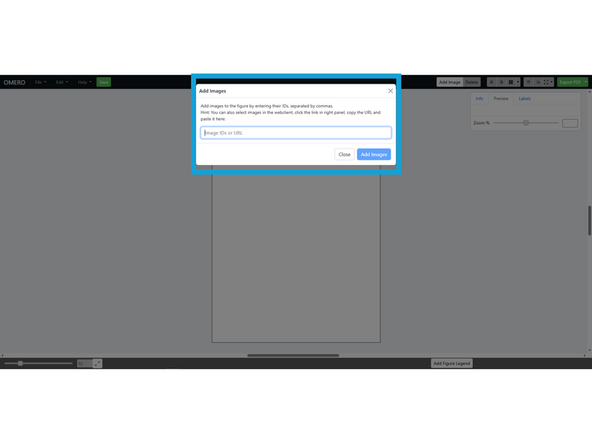
Click on Figure at the top of the OMERO.web main window. In the newly opened browser tab, click on Create New File and then add a comma-separated list of image IDs to be imported into the Figure. The image IDs are unique and can be retrieved by the right-hand side panel.
-
An exemplary Figure consists of multiple images, aligned and annotated, with comparable scaling and colors. Users can change channel intensity, select ROIs, preview before applying changes, rotate images, create insets, use markers and pointers, etc. Scale bars can also be added from the Label tab.
-
-
-
For further resources, check the following links. ZMB is not affiliated directly with any of the entities below, but they are great sources of know-how around OMERO:
-
-
-
-
-
-