Introduction
All hardware components and computer should be on. If not contact the ZMB responsible staff member.
-
-
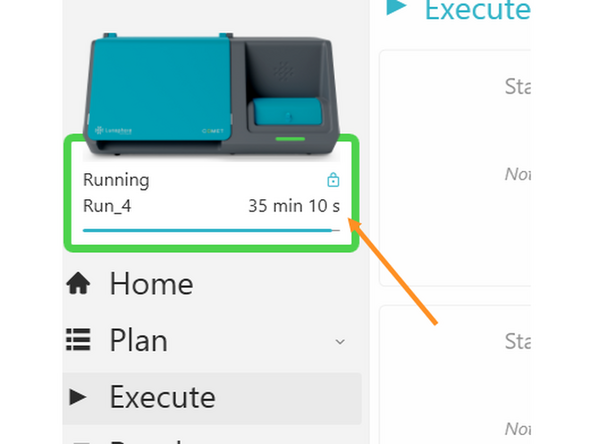
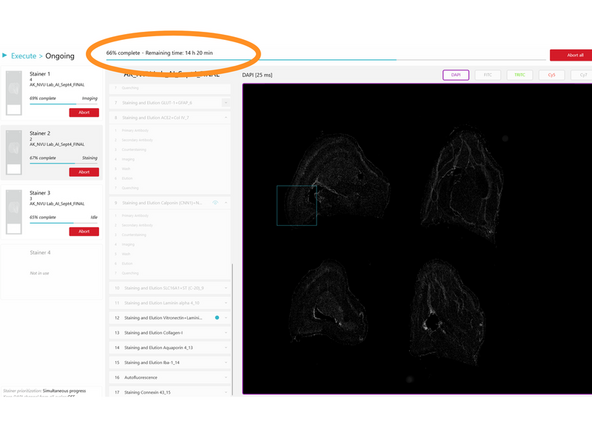
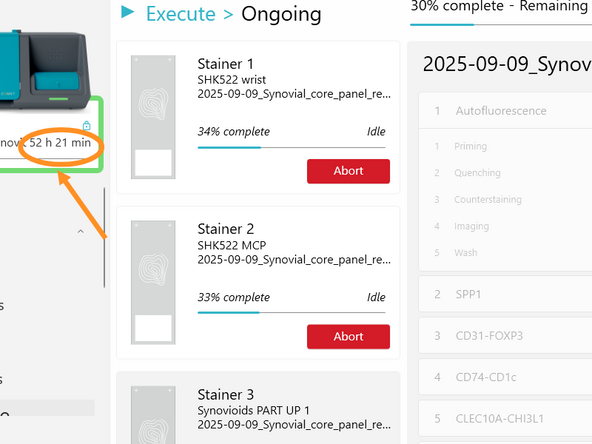
Monitor Your Run Time using the Remote Control via Citrix. Please Communicate with the next user and ZMB staff about longer or shorter run times to adjust scheduling in advance. Book an extra 1 to 2 hours for required run reservoir cleaning, remotely triggered by you, the current user.
-
It is the responsibility of the current user to trigger remotely the reservoir cleaning.
-
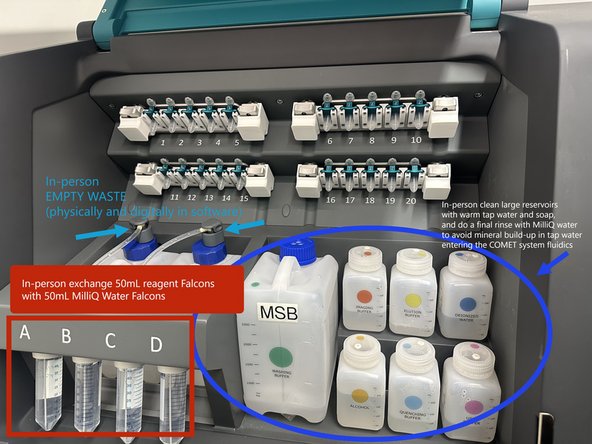
In person steps like unloading the slides, emptying the waste containers (physically and in the software), and exchanging the 50mL reagent Falcons (FA, FB, FC, and FD) with MilliQ Water Falcons, and triggering this in person reservoir cleaning for these 4x 50mL Falcon tubes can be done by the next user or you! Please Coordinate.
-
Lunaphore support can help with stalled experiments. Contact ZMB staff to initiate Lunaphore support.
-
-
-
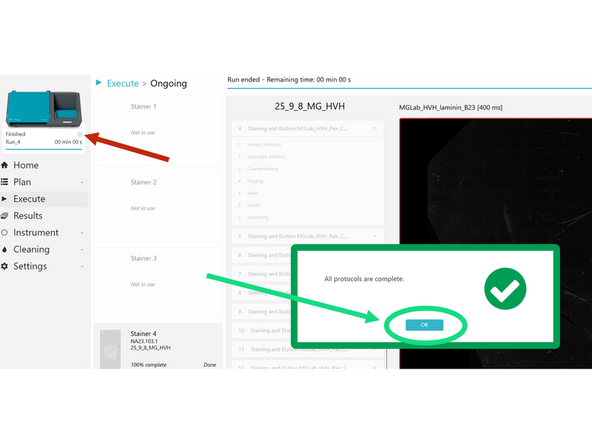
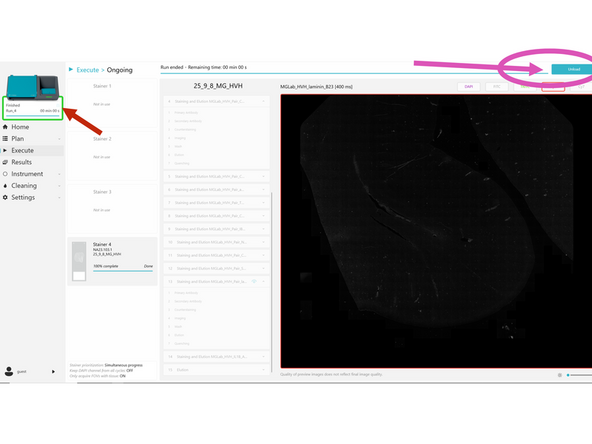
When a run is complete, check the pop-up in COMET Control Software to see its status. If the status is orange or red, make sure to later check the protocol report(s) to see the details of the warning(s)/error(s).
-
Click Protocols complete-okay Large Green box on the screen
-
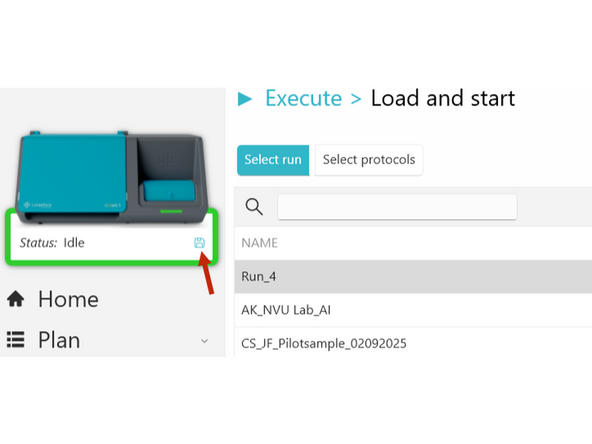
Carefully check save icon status!!! Red arrows in all three images in this step, point to floppy disk icon that tells you if data is still being saved, this floppy disk image pulsates like a heartbeat while saving is underway.
-
Clicking Protocols complete-okay does not mean run has finished saving - Carefully check save icon status!!! Do not close comet software while saving is ongoing.
-
Close the pop-up. Preview images for completed protocols can be seen. Once the review of preview images is done, click UNLOAD. Top right corner (turquoise unload button).
-
Clicking both, Protocols complete-okay and Unload, buttons are first necessary for initiating next run end action steps (in-person or remote): like triggering remote reservoir cleaning, or in-person steps like unloading slides from the stainers or emptying waste containers.
-
-
-
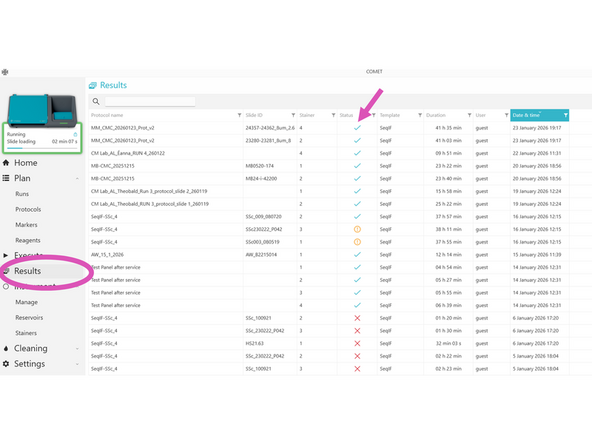
In COMET Control Software, check results from individual protocols in RESULTS. This can be done in person at the system or remotely using CITRIX and the Remote Control option.
-
a) Click on the protocol of interest (by default the most recent appears at the top of the list).
-
b) Click on the "Open report" icon to open the corresponding PDF report. Refer to UM, section Protocol report errors for details on errors reported, if any.
-
c) For completed protocols, click on the "Open image" icon to open the Viewer and see the acquired images. In depth image review should be done on VM F using Horizon after moving data.
-
d) Click on the "Open output folder" icon to open the folder containing the output files (report and image).
-
-
-
On the COMET PC. Move your data. This can be done in person at the system or remotely using CITRIX and the Remote Control option.
-
Always Confirm Saving is complete, especially before closing COMET software/logging off. Saving Icon Pictured- Data will be lost if you don't wait for the floppy disk icon to disappear before proceeding.
-
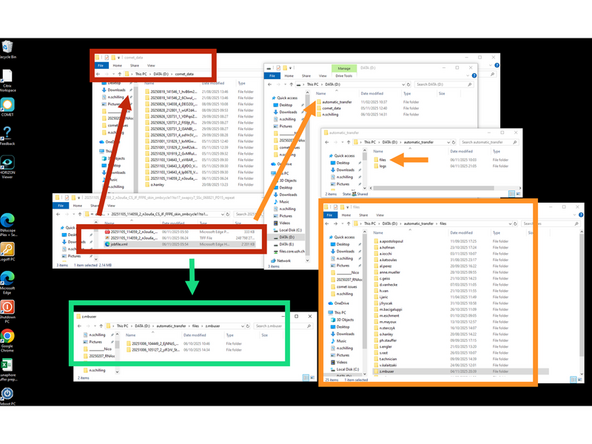
Only take next steps once data is completely saved, floppy disk icon gone and three complete files are present in your folder located in PC> DATA (D:)> comet_data (jobsfile.xml present, not jobstempfile.xml). Move your data only after confirming.
-
Move your data: from This PC > DATA (D:) > comet_data to This PC > DATA (D:) > automatic_transfer > files > initial.lastname user folder (i.e o.hanley) by using CUT PASTE- never COPY PASTE
-
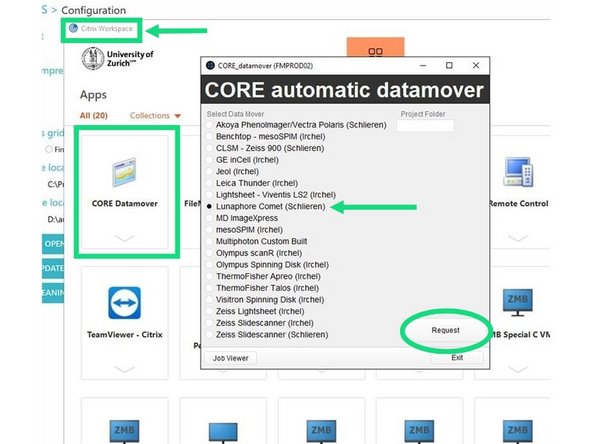
DATA MOVER INSTRUCTIONS: You again go to Citrix from your own computer (not necessary to trigger from COMET PC)-> Select CORE Datamover at top left corner -> and select Lunaphore COMET (Schlieren) -> Select Request. IT will send a series emails updating you on the status of your data move.
-
Try to move data prior to next user starting at the system or during a remote reservoir cleaning. So you can control that the COMET PC isn't being restarted, and that you are not compromising the next user's experiment (especially as tiles are being saved during the next user's experiment this can be heavy on the COMET PC to both move and save).
-
Reach out to ZMB staff if you need to coordinate this DATA MOVER timing outside of your booked COMET session.
-
-
-
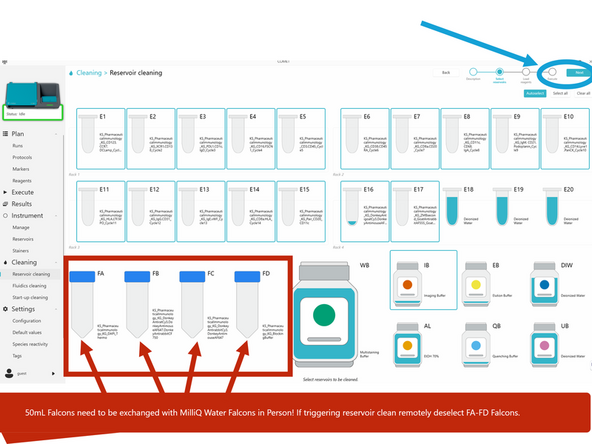
Within 24 hr after the end of a run, the current booked user performs a Reservoir cleaning of all small reservoirs and any expired large reservoirs used during that run. The water reservoir is filled to 250mL at start of run allowing remote triggering to proceed Deselect the FA-FD Falcon reservoirs via remote control while using CITRIX.
-
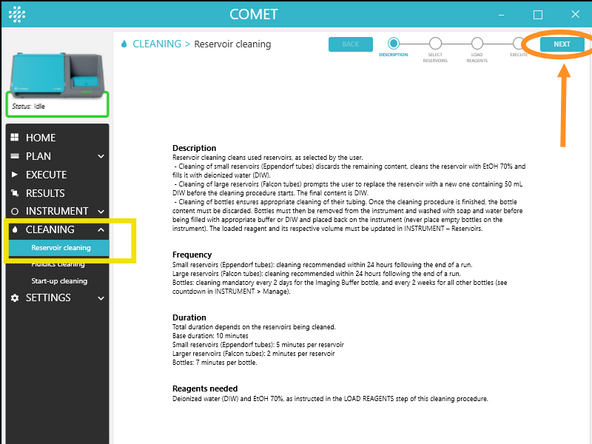
a) In COMET Control Software, go to CLEANING > Reservoir cleaning
-
b) Read the Description and click NEXT.
-
c) Select the reservoirs to be cleaned by clicking on them. By default, all used reservoirs are automatically selected. If triggering remotely, unselect 50mL Falcons (FA-FB-FC-FD). Click NEXT.
-
d) Open the Reagents module door and perform the required actions displayed in COMET Control Software. If triggering remotely only select appropriate reservoirs- deselect falcons
-
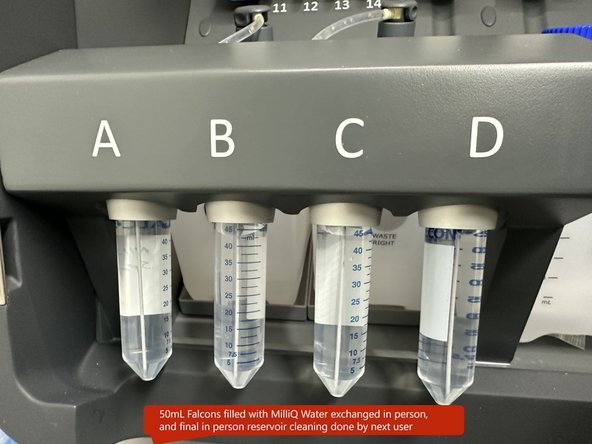
For in-person Reservoir cleaning. Used 50mL Falcons (FA-FD) should be swapped with prefilled 50mL MilliQ Water Falcons and the large 70% Ethanol Reservoir and DIW (MilliQ) water reservoir filled to 250mL before starting the clean. Must be done in person at the system to physically swap Falcons
-
e) Optional: remaining reagents in small reservoirs (eppendorfs) can be saved before starting the cleaning procedure. To do so, go to INSTRUMENT > Reservoirs, open the rack containing the reagent you want to retrieve by clicking on the corresponding lock symbol, replace the microtubes with empty ones, and store leftover reagents for later
-
f) Close the Reagent module door and click START in CLEANING > Reservoir cleaning.
-
-
-
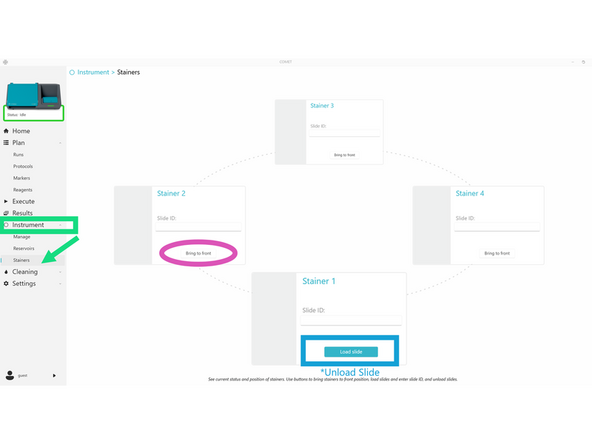
If at the system. In COMET Control Software, go to INSTRUMENT > Stainers to unload the slides.
-
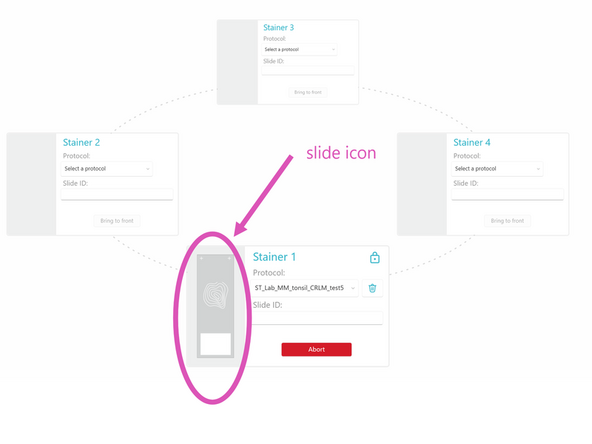
a) Bring a stainer to the front to retrieve its slide and click OPEN STAINER. Wait until the open stainer procedure is finished (slide icon not visible anymore on that stainer).
-
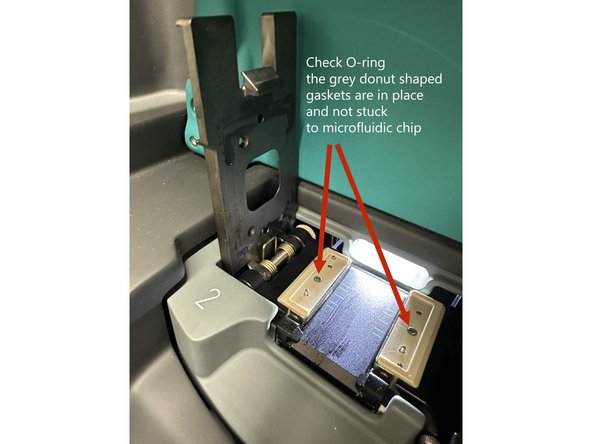
b) On COMET instument, open the Staining and Imaging module door and open the lid of the stainer in the front. Remove the COMET Chip and discard it. Retrieve the slide if the slide needs to be kept for later use and store in appropriate buffer.
-
Important: The stainer inlet/outlet o-rings may remain stuck to the COMET Chip. If the do, remove them from the chip and place them back into the o-ring grooves on the stainer. If an o-ring is lost, place a new one from the spare parts provided with the system.
-
Additionally, the COMET Chip seal may remain stuck to the slide. If it does, remove it from the slide before removing the slide from the stainer.
-
c) Dry the stainer with a tissue if any liquid remains. Close the stainer lid and the Staining and Imaging module door. d) Repeat steps a) to c) for other slides to unload.
-
-
-
Once Reservoir cleaning is completed, cleaned small reservoirs (eppendorfs) are filled with DIW (MilliQ) no user action is needed.
-
Perform the following actions for each large reservoir bottle that has been cleaned:
-
a) Discard its content (bottle content is shown black in INSTRUMENT > Reservoirs).
-
b) Wash it in the sink with soap and hot water. Final Rinse with MilliQ water. Avoid Minerals from tap water entering COMET fluidics.
-
c) Fill bottle with DIW (MilliQ water) or fresh buffer (never leave bottles empty!) and place it back on the instrument.
-
d) In INSTUMENT > Reservoirs, allocate the corresponding reagent to that bottle.
-
The currently booked user cleans the reservoirs from the previous run, by triggering remotely. Coordinate with the subsequent user to confirm which reservoirs/tubes still need cleaning in person (typically next user empties waste, unloads slides from stainers and does in-person FA-D Falcons Reservoir cleaning, a 20 min reservoir clean).
-
Important: Always keep the bottle content and volume up to date in COMET Control Software to avoid any confusion, which could lead to erroneous protocol results. ZMB blocks the instrument monthly for full fluidics cleaning. Do not shut down the COMET; leave it on unless instructed by ZMB.
-
-
-
Review your data: Horizon Viewer or Horizon Software for analysis.
-
Check Data Quickly and Carefully, notify ZMB staff if you have missing cycles, corrupted data, focus errors, etc. ASAP!
-
Horizon and HALO software tutorials- see pdf guides and ask follow-up questions & discuss workflows with ZMB Image Analysis Specialists https://www.zmb.uzh.ch/en/ImageAnalysis....
-
Latest Horizon Training Video (Nov. 3 2025)
-