Introduction
InstanSeg is a cell and nucleus segmentation pipeline for fluorescence and brightfield microscopy images. This guide describes how to install it for QuPath on the ZMB VMs, and how to make use of the GPU for faster results.
-
-
Open QuPath
-
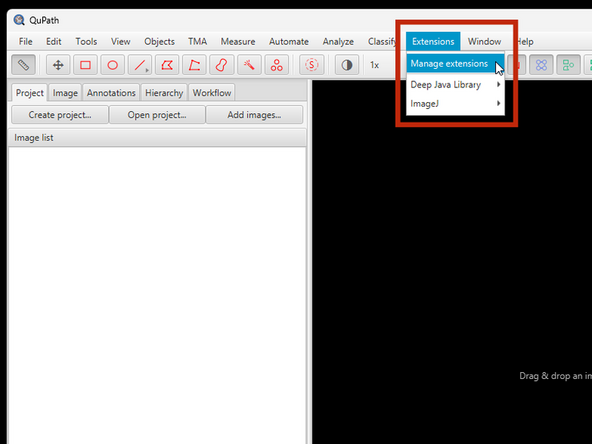
Go to Extensions > Manage extensions
-
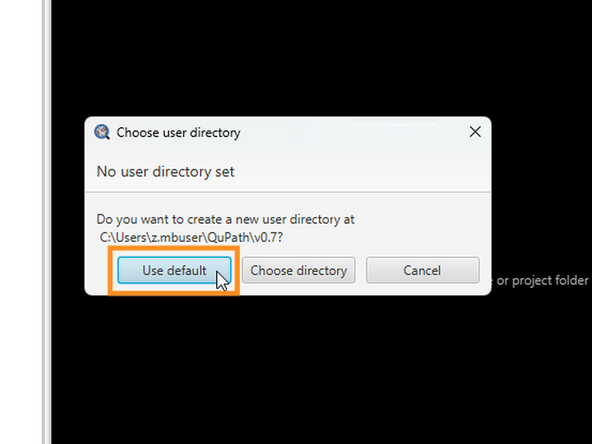
We recommend to choose "Use default", when prompted for a user directory
-
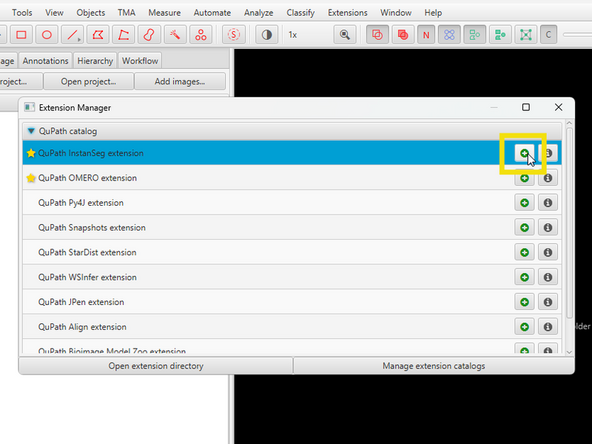
Install the "QuPath InstanSeg extension"
-
Choose the newest version and click "Install"
-
-
-
Open an Image
-
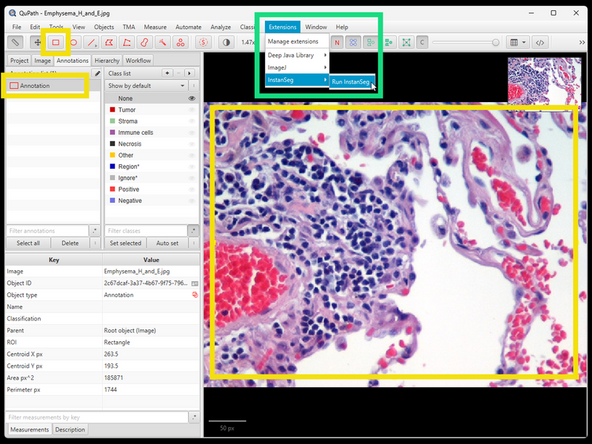
Add an annotation
-
Note: For running InstanSeg the very first time, we recommend using a small annotation region
-
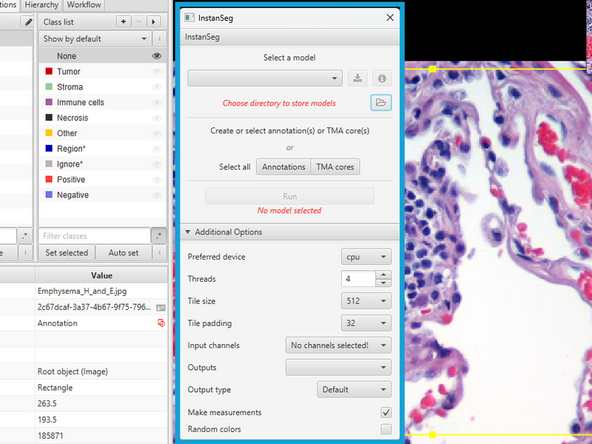
Open InstanSeg extension via Extensions > InstanSeg > Run InstanSeg
-
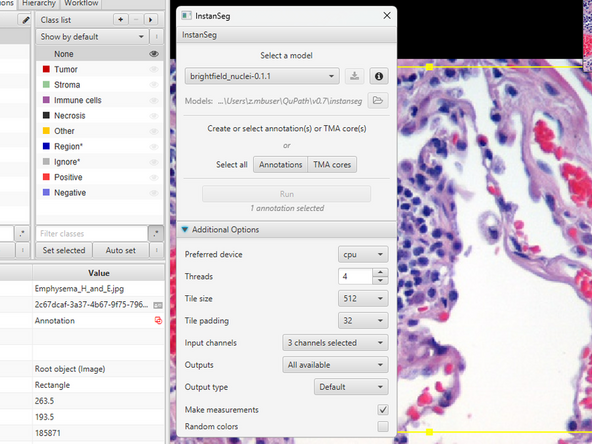
The InstanSeg extension window should appear
-
-
-
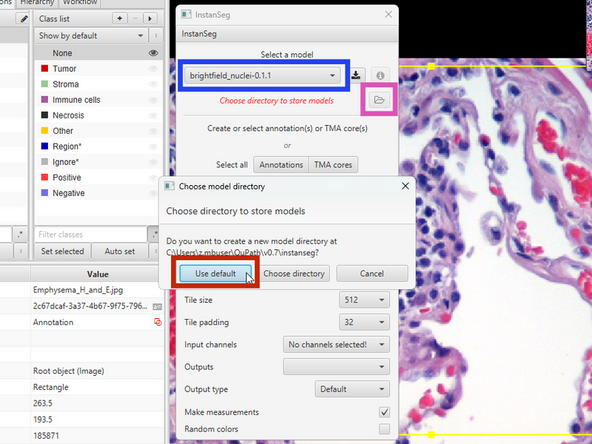
Choose an appropriate model for your image
-
Choose a directory to store the model. (Only needed the first time running InstanSeg)
-
We recommend to "Use default"
-
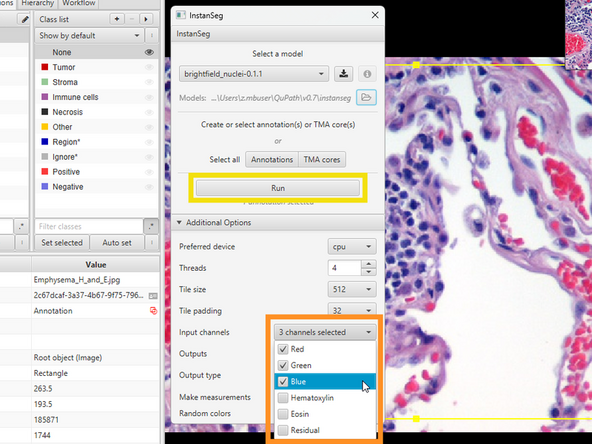
Select channels to use for segmentation
-
Once all parameters are set, hit "Run"
-
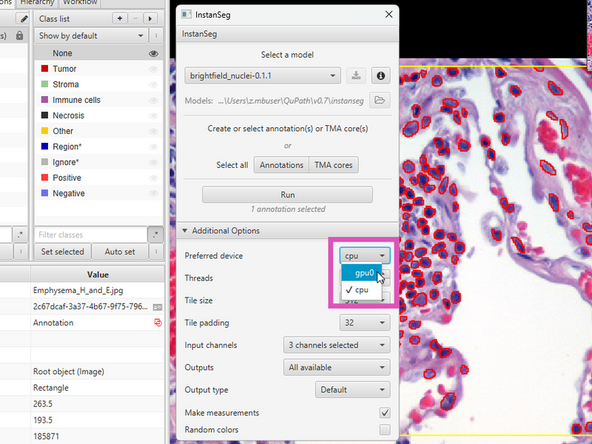
Note: The first time InstanSeg is run, only "cpu" is available under "Prefered device". After the first time, "gpu" will also be available
-
-
-
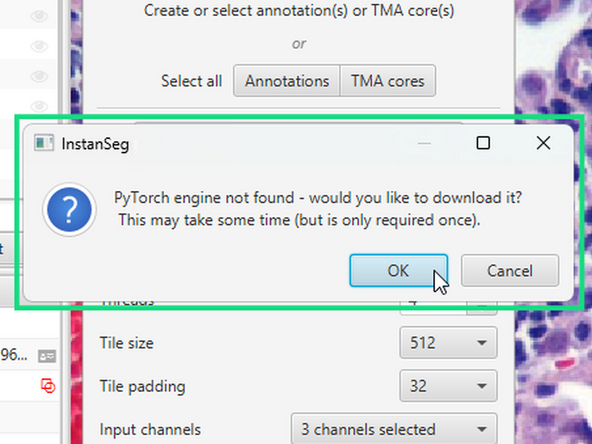
The first time InstanSeg is run, you will be prompted to download PyTorch engine. Click "OK"
-
You might be asked multiple times. Always press "OK"
-
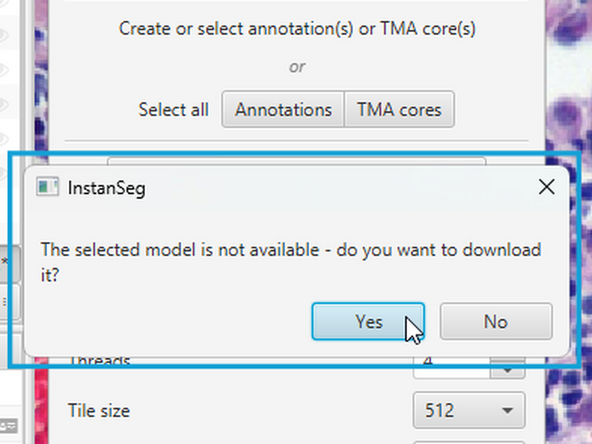
Also press "Yes" when asked to download the model
-
At this point it might appear like nothing is happening. Wait for ~1 min without closing the InstanSeg window. After that, the segmentation should start & appear.
-
-
-
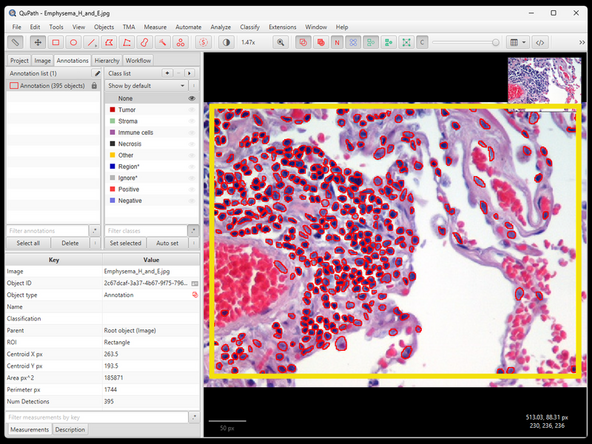
After it is done, segmented cells should appear in your annotation
-
From now on, the option to use the gpu should be available under "Preferred device"
-
Using the gpu should speed up the segmentation
-