Introduction
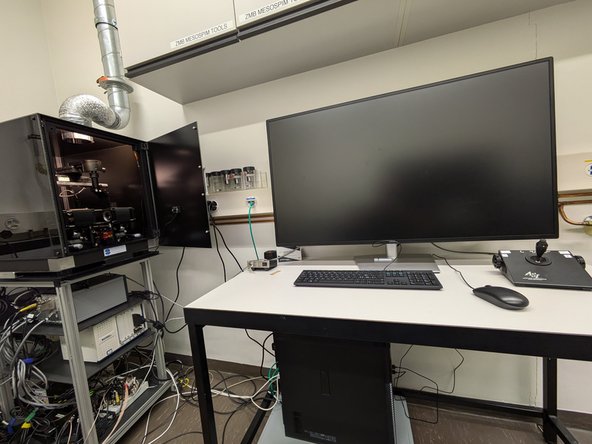
In this guide you will learn how to recover your sample, save your data and how to close the session at the ZMB Benchtop MesoSPIM lightsheet microscope.
For a full documentation about the microscope please, visit the project webpage: http://MesoSPIM.org
-
-
Click "UNLOAD" to move the sample to the uppermost position.
-
Open the door of the light insulation box.
-
Use a tissue to avoid liquid dropping from the cuvette and take out the cuvette with the sample.
-
Move slowly the cuvette holder along the rails. Once away from the lenses take out the cuvette and place it in the hood.
-
Close the "MesoSPIM Control" window.
-
-
-
Do this step once you have finished your imaging session and the software is closed. Starting the Datamover while MesoSPIM control is still open can cause data loss.
-
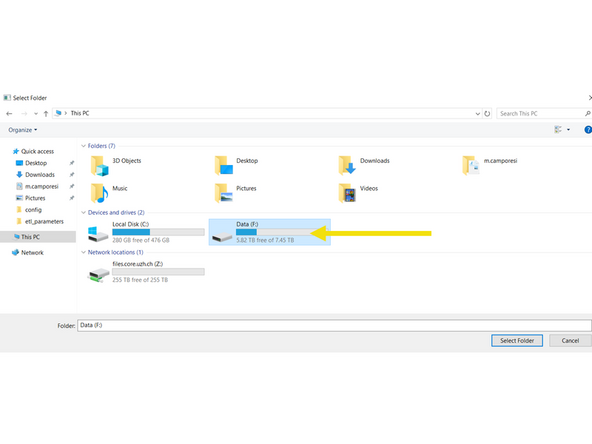
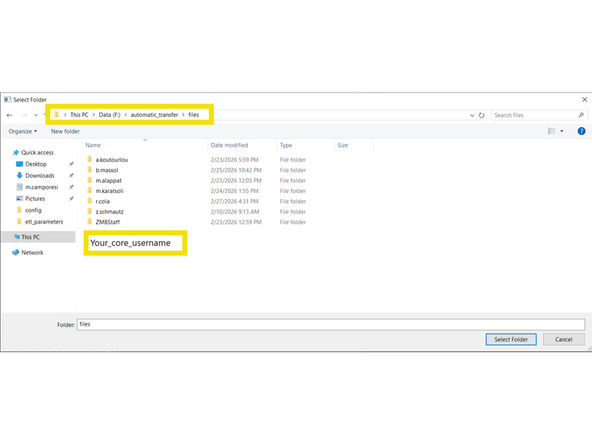
Double-check that your acquired data is in the drive Data(F:): "Data(F:)/automatic_transfer/files/coreusername". If not, move your data there before continuing.
-
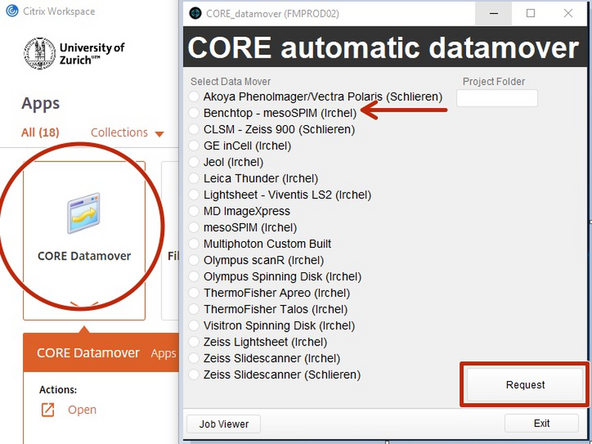
Open Citrix Workspace and log on.
-
Select and launch the application "CORE Datamover" (the first start of the application can take up to 3 minutes)
-
Select "Benchtop - mesoSPIM (Irchel)" and click "Request"
-
You will get a confirmation that your request has been created. Your transfer job will be queued within 15 minutes.
-
-
-
Check in the booking system if there is another booking within the next hour.
-
If YES
-
Logoff PC
-
If NO
-
close the shutters in Oxxius software
-
Turn the laser key to off
-
Logoff PC
-


Cancel: I did not complete this guide.
One other person completed this guide.