-
-
When user will log in with his Windows account it is needed to run a macro - so the user layout, OCs, etc, are loaded
-
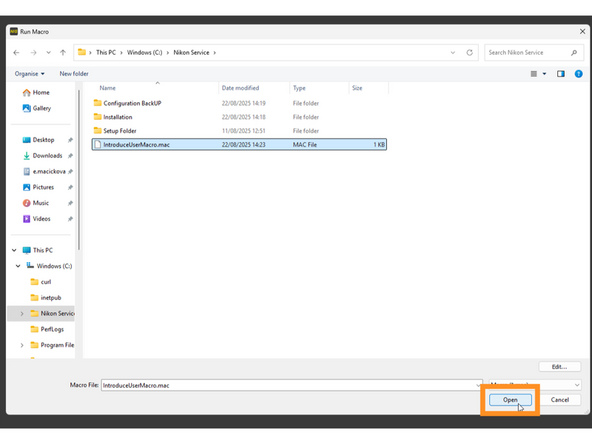
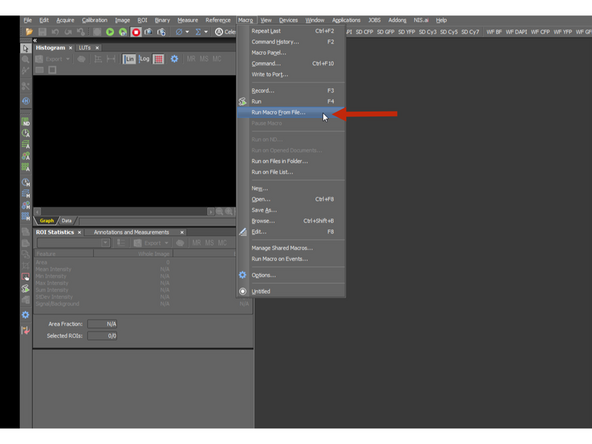
Find Macro > Run macro from a File
-
Find path, where the Macro is saved: C:/Nikon Service and Open file IntroduceUserMacro
-
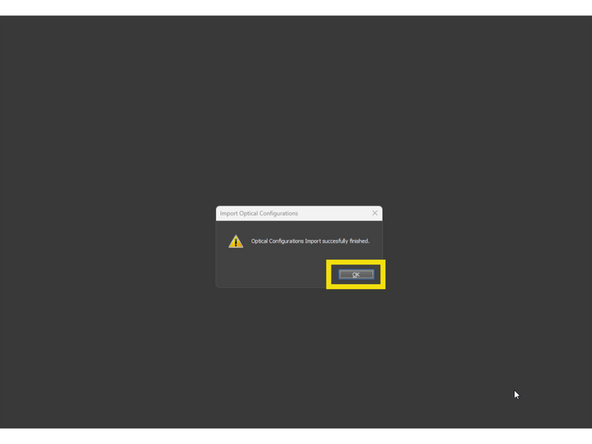
Confirm OK
-
-
-
Some of the stuff can´t be add to macro, as it does not have a command in NIS-Elements. However, they are more appealing and help for orientation in the SW
-
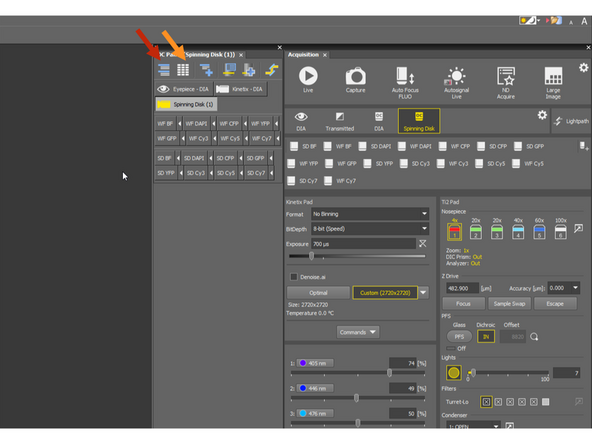
Display groups
-
Align
-
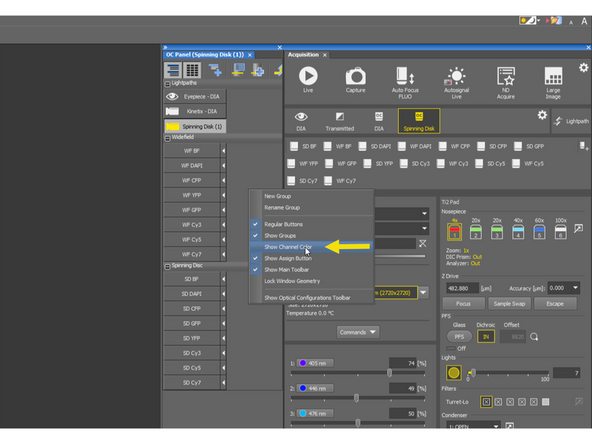
Rightclick on the OC panel and choose Show channel color
-
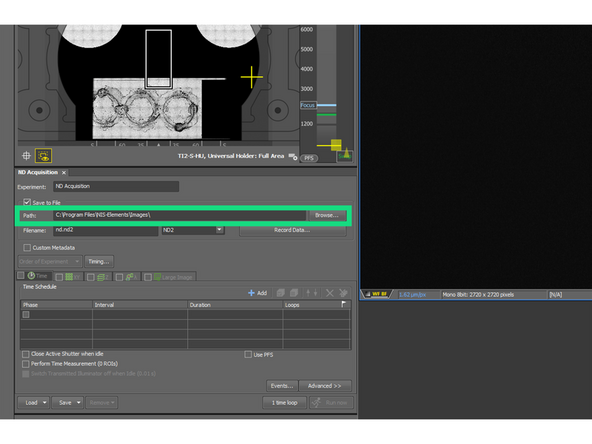
Change the saving path during the intro!!!
-
-
-
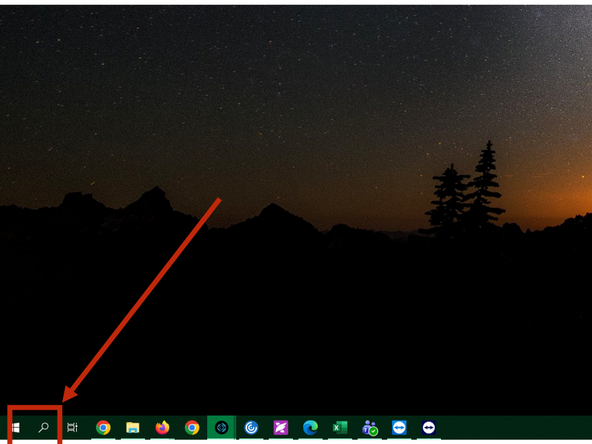
Open Ti2 control app: Search in the Windows Start for the app
-
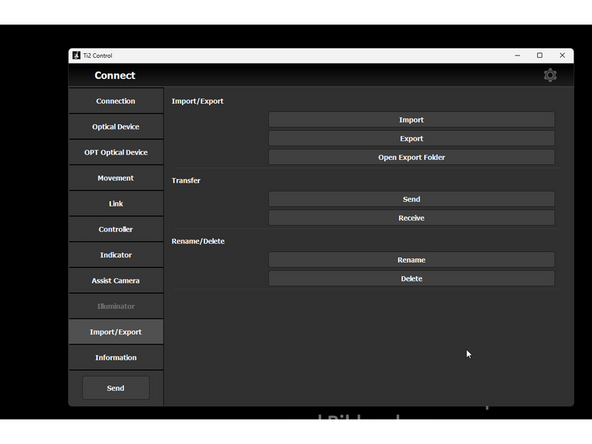
Go to Import/Export and click on Open Export Folder - (if you have never uploaded configs before)
-
New empty folder will be opened - keep it on the desktop
-
Open a second File Explorer and find a file in this path: C:/Nikon Service/Configuration Backup called Ti2BckUpctrl and copy it to the Export Folder
-
Close both folders and in the Ti2 control app click on Import, and load the Ti2BckUpctrl settings > click on OK and confirm to send it to microscope.
-