Introduction
This guide shows you how to use the autosave option in the LAS X software on the Leica SP8 Falcon. This temporary local backup solution avoids data-loss in case of a network interruption.
IMPORTANT: Autosaving does NOT work for FLIM!
-
-
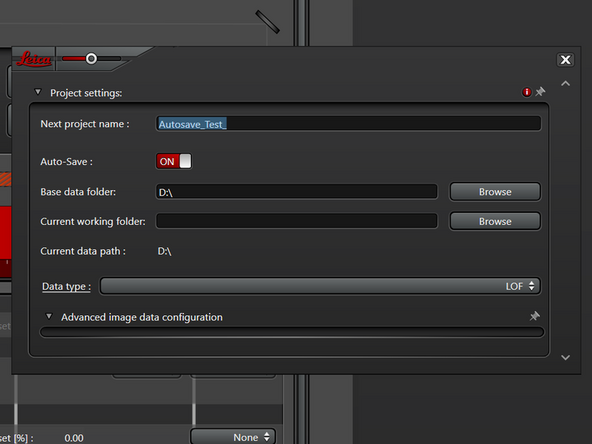
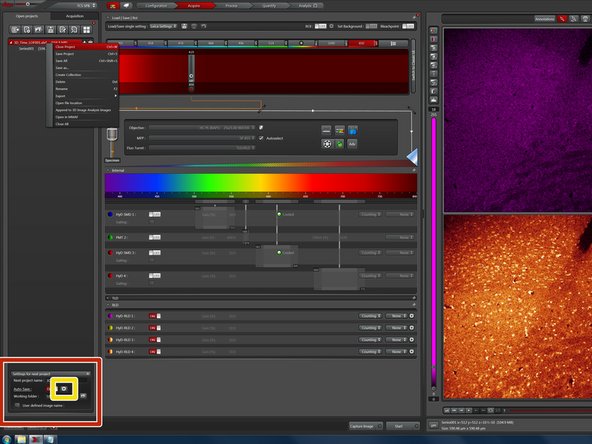
In "Open projects" at the bottom of the window you can find the auto-save settings for the next project.
-
Click on the "+" icon in the auto-save settings to open the advanced configuration.
-
Changes in the auto-save settings are only applied when generating a new project. So always make a new project when engaging or changing auto-saving.
-
-
-
We recommend the following settings for autosaving:
-
Data type: LOF
-
Select a D:\ as "Base data folder". The "Current working folder" can be left blank.
-
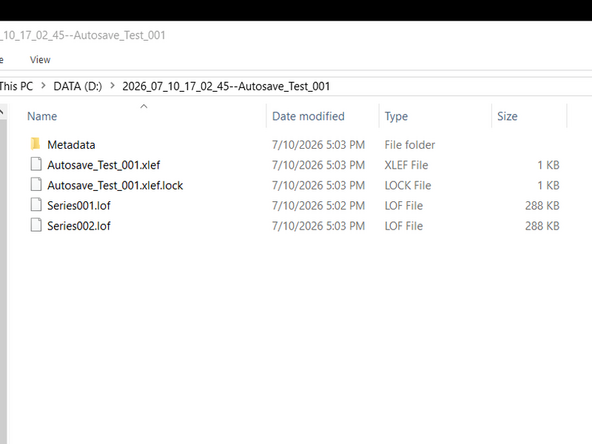
The proprietary Leica .lof auto-save file format can be opened in LASX as well as in Imaris. However, the OME Bioformats reader can not read it. We recommend using this only as a temporary backup.
-
This will create .lof files for all the images and a .xlef file containing all the project information.
-
-
-
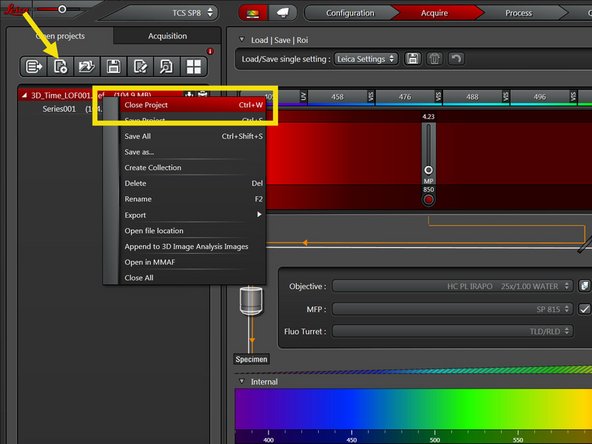
Before starting your experiment, close the old project and create a new one with the updated auto-save settings.
-
Perform your experiment.
-
If everything went ok:
-
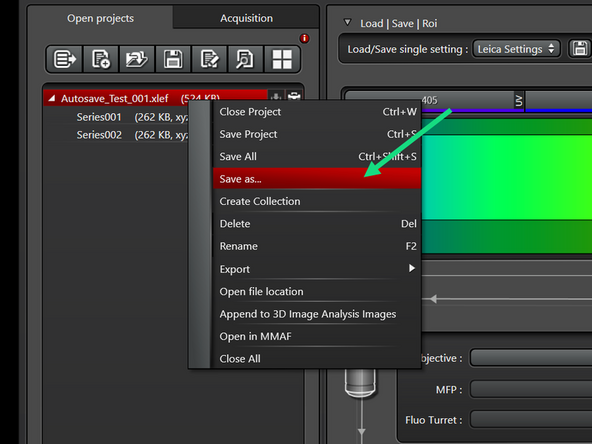
Right-click on the project and "Save As" .lif file on your core storage (network path: \\files.core.uzh.ch\).
-
If the software crashed:
-
Open LAS X again. Ideally, the files get recovered automatically. If not, open the .xlef file from the autosave folder on the D:\. Wait until the project and all its images are fully loaded and then proceed to save it as a .lif file.
-
Deleting the project will also delete the auto-saved data. Rather close the project at the end.
-
Check whether all your data is saved on the network. Then please delete the data on the local drive as the space is limited. We will delete the data without further notice. This is really meant as a backup during imaging and not for storage.
-